Docs / Search & Product Filter / Search
Search & quick search
The search half of Search & Product Filter: the results dropdown customers type into, how matching and relevance are tuned, and the synonyms, redirects and rules that decide what they find.
Features, pricing and a free trial: Search & Product Filter for BigCommerce.
Search
Quick search
Storefront Replaces your theme's search box behaviour with the app's results dropdown.
Quick search replaces your theme's search box with a dropdown that returns products as the customer types. Search settings are the Search Settings tab of App Settings.
- Search Engine
- Search Off turns site search off completely. Search Engine 1 is more exact, with predictable results. Search Engine 2 matches more broadly with better fuzzy search and stronger relevance, and suits most stores. AI Search appears here too when you have that add-on. Settings specific to an engine, such as its synonyms, only take effect while that engine is selected.
- Quick Search Mode
- What shoppers see while they type: Quick Search Off (pressing search goes straight to the full results page), Optimised Dropdown, One Column, Legacy One Column, Two Column, Full Size Popup, Big Dropdown or Compact Dropdown. See Optimised Dropdown for the recommended one.
- Dedicated Search Page
- Where customers land when they press Enter. Stay in Quick Search keeps them in the dropdown. Redirect to Full Search takes them to a full results page, also when they pick a trending or recent search.
- Quick Search Action
- Automatic Search searches as the customer types. Enter Press waits for them to press Enter, which means fewer automatic searches.
- Delay (ms)
- How long to wait after typing stops. Raise it if your store is large and searches feel busy.
- Minimum Search Characters
- How many characters before searching starts. Two or three avoids returning half the catalogue.
- Search bar class
- The CSS class of your theme's search input, so the app knows which element to attach to. Set this if quick search is not appearing on a custom theme.
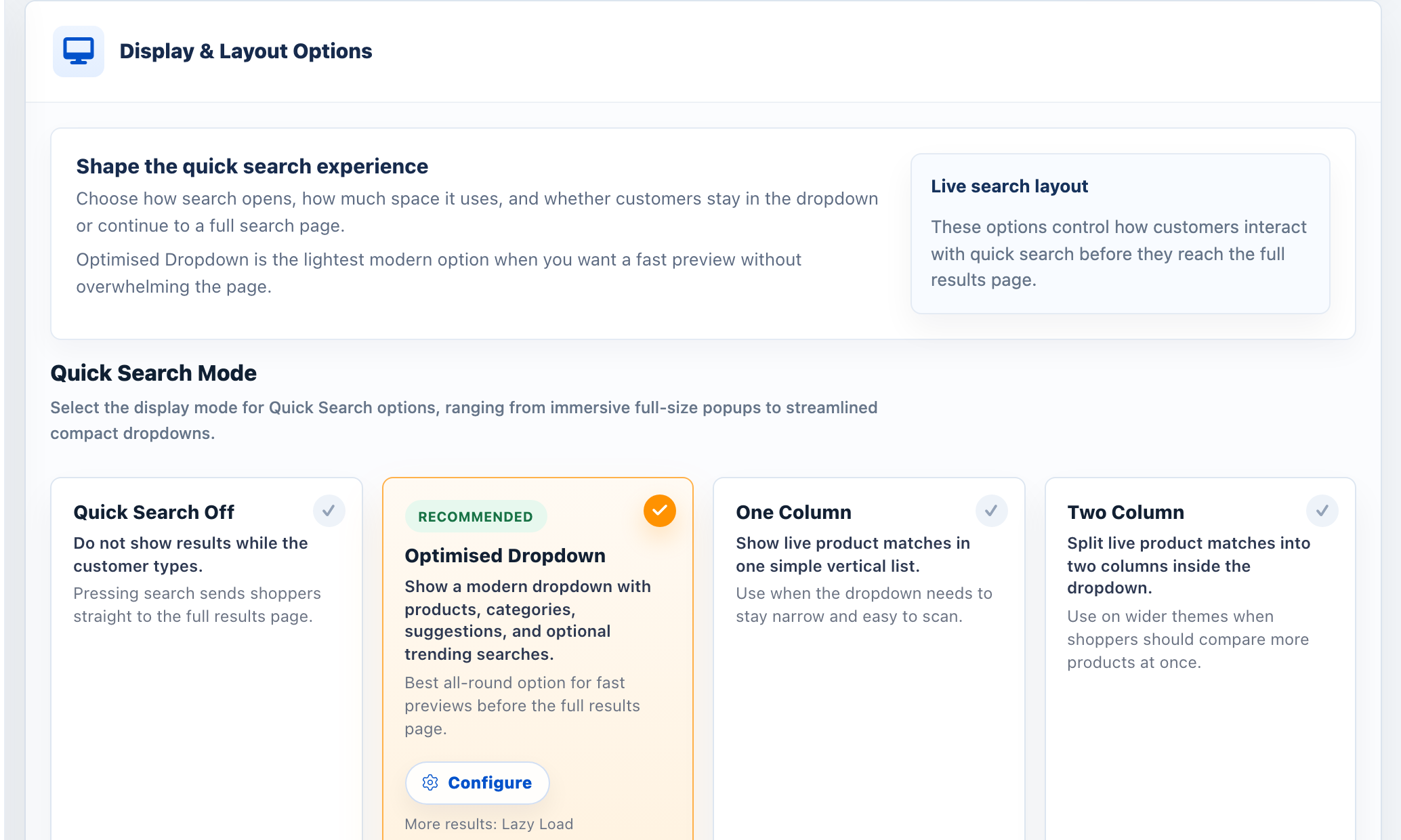
Optimised Dropdown
Storefront Shows a modern dropdown of products, categories, suggestions and optional trending searches as shoppers type.
The Optimised Dropdown is the recommended quick search mode and the best all-round option for fast previews before the full results page. Choose it as the Quick Search Mode, then click Configure beside it. Changes apply to the dropdown straight away.
- Product preview limit
- How many products show before shoppers view all products.
- Category result position
- Above products shows category tags first. Below products keeps product cards first, with compact category tags underneath.
- Load more as shoppers scroll
- New product matches appear at the bottom of the dropdown automatically.
- Send shoppers to full results
- Adds a View More button after the first group of products. Best when shoppers need filters, sorting and more room to compare.
- Product Suggestions
- Suggests matching products while the shopper types. Needs Quick Search Action set to Automatic Search.
- Category Suggestions
- Suggests matching categories in the same list. Needs Automatic Search.
- Top Searches
- Shows popular and suggested terms in the opening dropdown.
- Top Searched Products
- Shows a product carousel based on recent search demand.
- Add to Cart buttons
- Adds a cart button to each product, so shoppers add without leaving the results.
- Show SKU
- Shows Part # and the SKU under each product name.
- Sticky search bar
- Keeps the search bar pinned while results scroll, and returns shoppers to their place after a product visit.
- Product Reviews
- Shows the same review stars or widgets used on product cards.
- Top Searched Categories
- Lets shoppers jump straight into popular category results.
- Need Inspiration Box
- Adds a prompt card that helps shoppers start exploring.
- Need Inspiration with results
- Keeps that box visible once a shopper has typed. Beside results puts it in a column next to the products (above them on narrow screens); Above results puts it on top; Off (start view only) hides it. Does nothing while the Need Inspiration Box is off.
- Popular Brands
- Adds quick links for brands shoppers search for often.
- Recent Searches
- Lets returning shoppers revisit searches from this browser.
The wording of labels such as Top Searches, Top Searched Products and View all results is under Language. Suggestions use product names, search keywords, synonyms and channel-specific results, and the matching text is highlighted.
What gets searched
Storefront Changes which content can be returned to customers: products, descriptions, custom fields, blog posts and pages.
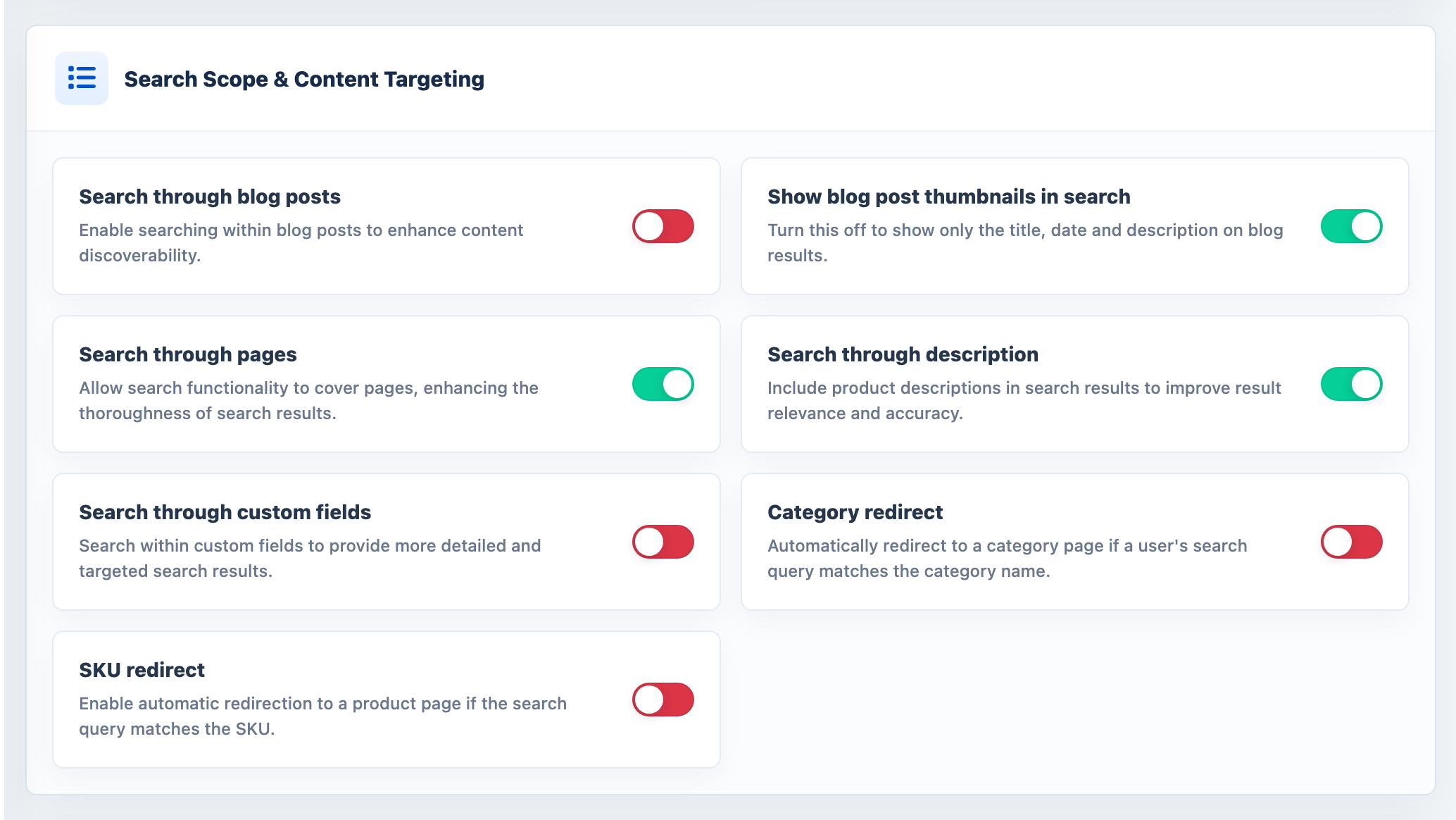
- Search through description
- Includes product descriptions. Widens results, but can pull in loose matches.
- Search through custom fields
- Includes custom field values, so a customer can search a material or specification.
- Search through blog posts
- Includes blog content in results.
- Search through pages
- Includes web pages such as delivery or returns information. Page body text is searched when pages are synced.
- Show blog post thumbnails in search
- On by default. Blog results carry their own thumbnail, on the quick search dropdown and the results page. Turn it off to show only the title, date and description.
- Remove Blog Posts From Search
- Select the blog posts to hide from quick search and the results page.
- Remove Pages From Search
- Select the pages to hide from search.
- Show Blog Searches
- Includes blog content in the suggestions and on a normal search.
- Product type selector in search
- Adds a Search in menu beside the search box listing your visible top-level categories. A shopper picks one and gets results from that category only.
Matching and precision
Storefront Changes which products a query returns and in what order. Test in the Search Playground before saving.
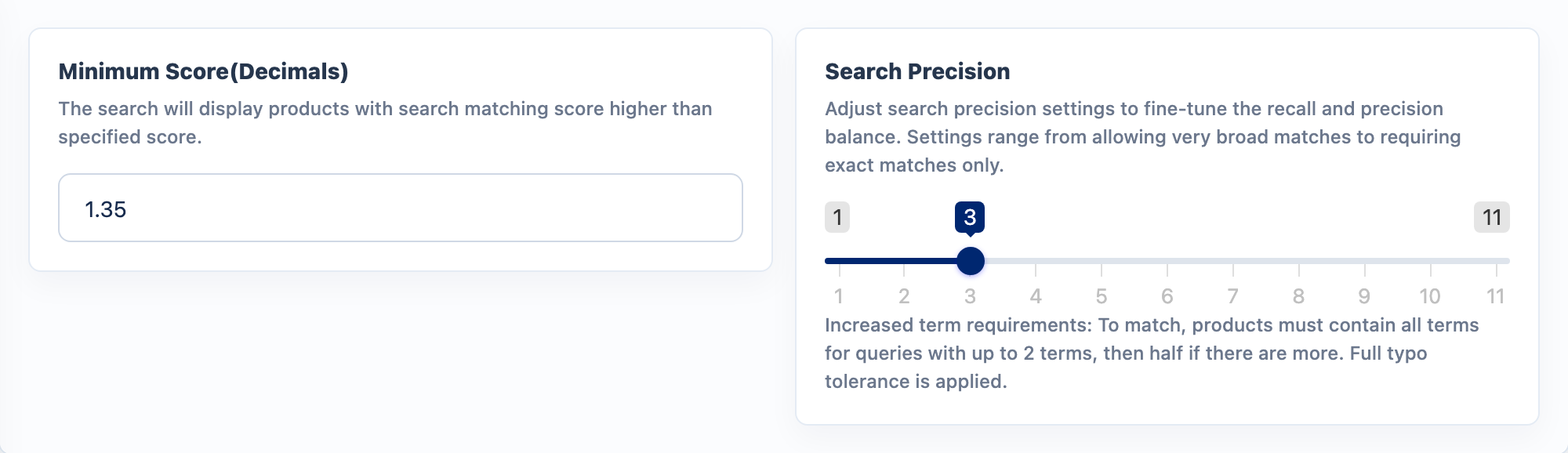
- Search Precision
- How strictly terms must match, in eleven steps. The loosest steps need fewer than half of the terms to match, with full typo tolerance. Higher steps need more terms, then all terms in the same field. The strictest steps switch off fuzzy matching, then prefixing, then contraction and hyphenation correction, and the last allows exact matches only, with tolerance for capitalisation. Tighter precision means fewer, more relevant results.
- Minimum Score(Decimals)
- The matching score a product must beat to appear. Raise it to cut weak matches.
- Search Match Any
- Searches for any word in the product name rather than all of them. Useful for long, descriptive searches.
- Match Whole Words Only
- Every word a shopper types must appear as a whole word, with its singular or plural, so cat finds cat and cats but not catch or category. It covers product names and keywords, descriptions and custom fields (if you search them), synonyms, and the Search box inside the filter panel. SKUs are still matched on part of the SKU. It applies only to the built-in database search; Search Engine 2 and AI Search match their own way.
- Match singular and plural
- When a search finds nothing at all, tries it again allowing for singular and plural, so children also finds child. It only runs on a search that returned no results, so it can add matches but never change the ones you get today.
- Priority Categories In Search
- Categories whose products should be pushed up the results. Priority Categories lift results on Search Engine 2 and AI Search, and the picker shows each category's parent so similar names are easy to tell apart.
- Priority Strength
- How hard that push is. Start low, because a strong setting can bury good matches from other categories.
- Category redirect
- Sends a customer straight to a category page when their search matches a category name.
- SKU redirect
- Sends a customer straight to the product when they search an exact SKU.
Search Engine 2 relevance controls
Storefront Changes how many products a search returns and how they are ranked. Each control leaves search as it is until you change it.
These settings sit with the Precision Controls and refine how Search Engine 2 ranks and trims results. Try them in the Search Playground first.
- Maximum Search Results
- The most products a search returns, best matches first. Leave at 0 to return every match. On a large catalogue a very broad word can match tens of thousands of products, and collecting them all makes those searches slow, so a limit of 1000 to 3000 keeps them fast at the cost of the least relevant matches. The cap trims the tail, not the top.
- Minimum Relevance (%)
- Only shows products scoring at least this percentage of the best match. Leave at 0 to show every match. A setting of 30 to 50 keeps strong matches and drops the weak tail behind a broad word such as bass. It adapts to each search rather than cutting at a fixed number.
- Prefer Exact Name Matches
- When the search term appears word for word in product names, shows only those products. P-Bass then returns the P-Basses rather than everything with bass in it. A term that appears in no product name is searched as normal.
- Keep Hyphenated Words Whole
- Searches a hyphenated word such as P-Bass or SL-112 as one word instead of two. Turning it on rebuilds your search engine, which takes a few minutes on a large catalogue. Searches keep working as they do today until the rebuild completes.
- Nearest Size First
- When a search includes one size, such as 1.5 urchin or 3 inch shad, ranks products by how close the size in their name is to it: the exact size first if you sell it, then the nearest sizes above and below. Sizes are read from product names and need a unit, such as 2.5", 3 inch or 1/4 oz. It only reorders and never adds or removes a product. Works when Product Order is set to Relevance.
- Group Exact Matches
- On the results page, shows products whose name contains the search term first, under an Exact matches heading, with the rest under Alternatives. The same products are found and counted either way. Needs the Relevance sort order, and the headings show until the shopper applies a filter or changes the sort. Prefer Exact Name Matches takes priority.
- SKU matches first
- Puts the product whose SKU is exactly what the shopper typed at the top, then products whose SKU starts with it, then the rest in the engine's own order. Products you have pinned for that term stay above it. Works only when Product Order is Relevance. It only reorders.
- Relevance tiers
- Ranks results by how each product matches, in the order you set. Tick the match types to use and move them up or down. A product appears once, in the first type it matches. Search Priority products always stay on top. Works with Search Engine 2 and AI Search when Product Order is Relevance, and replaces SKU matches first while any type is ticked. Untick everything to switch it off.
- Ignore spaces and dashes in SKUs
- For Relevance tiers: ab-35, AB 35 and AB35 all match the SKU AB35.
- Match Multi-Word Synonyms as Phrases
- A synonym such as garlic sauce normally matches every product containing either word. With this on it only matches products containing both words together. Applies to every channel.
- Translate searches with Weglot
- For stores translated with Weglot: searches the original-language catalogue for what a shopper typed in another language. Only applies on the Optimised Dropdown style and its results page. Each distinct word a shopper searches counts as a word in your Weglot plan.
When a search finds nothing, the store retries it with the likely spelling or word form and tells shoppers what it searched for instead. Searches also match each word against your synonyms and keywords in turn, including terms held in product descriptions, terms written with commas or ampersands, and very short words.
Search results display
Storefront What each result shows in the dropdown and on the results page.
- Show Description
- Shows the product description on the quick search.
- Display the SKU
- Shows the SKU on each result. Worth turning on for trade and parts stores.
- Show Ratings
- Shows the review score on each result.
- Product Order
- The order results are listed in, including Relevance. Your choice saves and applies on your search results page.
- Search Results Filters
- No Filters, Only Products is the simplest layout. Display Filters on Search Results shows the filter panel beside results, so customers can narrow a broad search.
- Enable Search Filter
- Lets the user filter searched products.
- Dark Store Styling
- Uses light text and controls when the storefront has dark page backgrounds.
Hide Compare Price, in Filter Settings, also covers search results.
Suggestions and empty states
Storefront What customers see in the dropdown before and as they type.
- Auto Quick Search
- Searches when the customer pauses typing. With it off they press Enter.
- Show Recent Searches
- Shows recent searches in quick search when the box is empty.
- Recent searches source
- Where those recent searches come from. Per-browser, the shopper's own searches, is the default. Site-wide draws on what everyone on your store has searched for, so a first-time visitor sees terms other shoppers use.
- Show Popular Products
- Shows popular products as fallback results when a search finds no matches.
- Suggested Searches Preview
- Displays suggested search terms when the search bar is focused.
- Search Suggestions
- Suggests words to customers as they type. Works only with the advanced search.
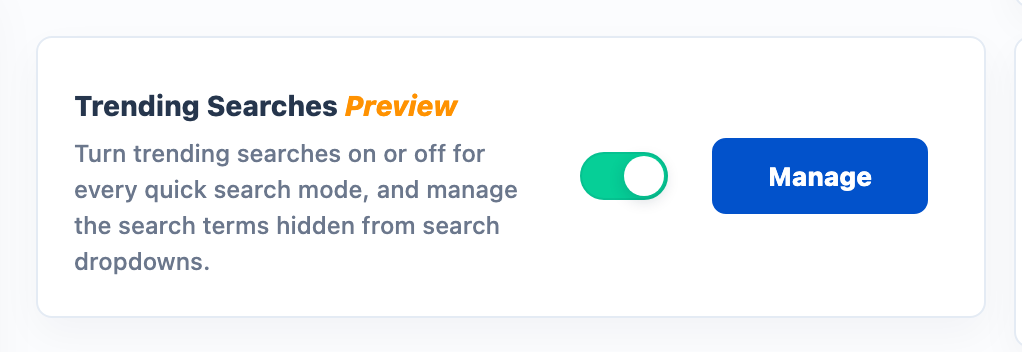
- Trending Searches Preview
- Turns trending searches on or off for every quick search mode, and lets you manage the terms hidden from the dropdowns.
- Trending Search Time(Days)
- The window trending is calculated over. A short window reacts to campaigns; a long one is steadier.
- Trending Search Terms
- How many trending terms to show.
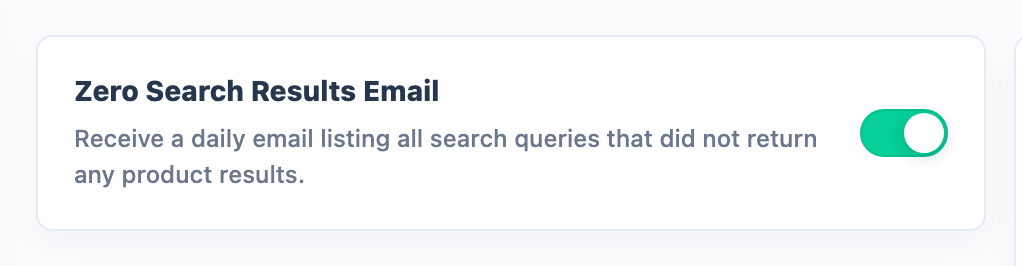
- Zero Search Results Email
- Emails you a daily list of searches that returned no products, so gaps in your catalogue or synonyms surface quickly.
Fallback page for empty searches
Storefront A search that finds nothing sends the shopper to the page you choose instead of an empty results page. Redirects set for particular terms take priority.
Open Search, then Redirects, and enter a page under When a search finds nothing in Page to send shoppers to, then click Save. A search tips page or a contact page both work. Leave it blank to keep the usual no results message. It does not apply to the suggestions that appear as a shopper types.
Contact details for questions
Storefront Shows your contact message above the results when a search reads like a question.
When a shopper types a question into your search box, you can show them how to reach you. Enter your message, for example your phone number and email, in Question contact message on the Language page. Leave it blank and nothing is shown. Nothing links on its own: write a link as [text](https://your-chat-page), [text](mailto:you@example.com) or [text](tel:+18006224655). It shows on the current storefront script only, and can also appear on product searches worded like a question.
Search Playground
Storefront Nothing. It queries your live index without changing anything.
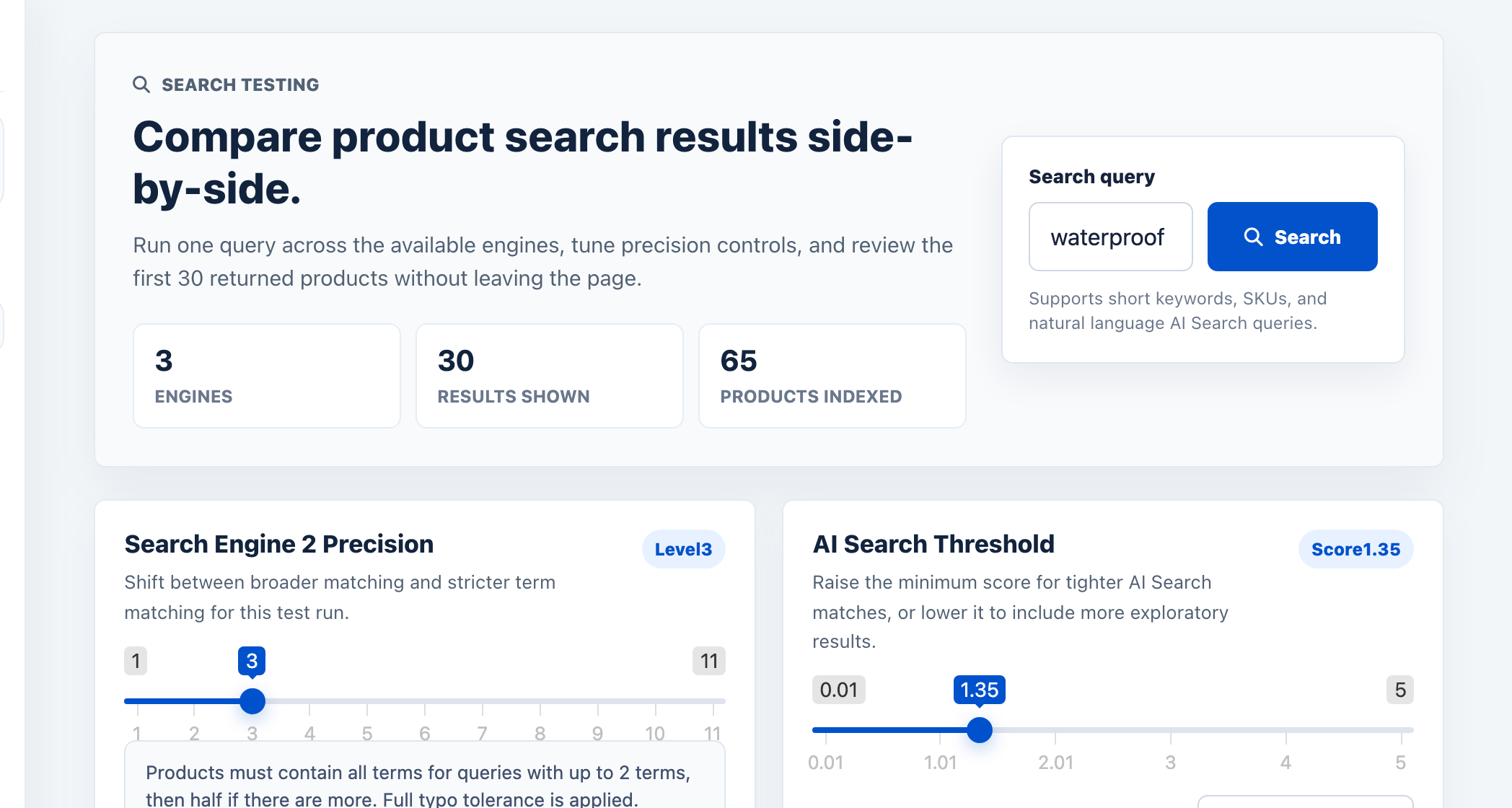
Run a query against your live index and see what comes back, without touching your storefront. The playground shows Search Engine 1, Search Engine 2 and AI Search side by side, so you can compare them on your own catalogue before committing to one. Queries can be short keywords, SKUs or natural language.
Each engine has its own controls: Search Engine 2 Precision, from level 1 (broadest) to 11 (exact only), and for AI Search a Minimum score from 0.01 (exploratory) to 5.00 (strict). Tune a setting and see the effect on real results immediately. It is the right place to reproduce a customer's "why does this not find X" report, and to test a change before it reaches your storefront. An engine that is not yet active shows Activation required; activation usually completes 5 to 10 minutes after indexing starts.
Product Check
Storefront Nothing. It reads your index and rules, and changes neither.
Answers one question directly: why is this product not showing in search? Open Product Check from the Search menu, enter a SKU or product ID, and click Check product. The page reports whether the product can appear at all, and what is stopping it if it cannot.
Add a search term as well and it also checks the rules that apply only to that query: word matching and per-term exclusions. That is the difference between "this product is invisible everywhere" and "this product is invisible for the word the customer typed", which need different fixes.
- SKU or product ID
- The product to test. Either identifier works.
- Search term (optional)
- Leave empty to ask "can this product appear at all". Fill it in to also check the word-matching and per-term exclusion rules for that query.
It runs ten checks, the ways a product goes missing. Each failing row has a fix link to the page that owns the setting.
| What it checks | What it means when this is the cause |
|---|---|
| In your catalogue | The app does not have the product. Run a sync: see Product Sync. |
| Visible | The product is hidden in your store. |
| On this storefront | The product is not on the storefront you are checking. See Product Sync. |
| In the search index | The product never reached the search index. Run a sync: see Product Sync. |
| Stock | The product's stock is keeping it out. Check the stock settings in Filter Settings. |
| Search exclusions | The product is excluded from search: see Exclude products. |
| Category exclusions | A category the product sits in has been excluded from search: see Exclude category products. |
| Per-term exclusions | The product is hidden for this particular search term, not in general: see Search Query Control. |
| Matches the words | The product does not match the typed words. See Synonyms. |
| Merchandising rules | A rule is demoting or hiding it: see Merchandising rules. |
If every check passes, nothing is blocking the product. The cause is then ranking rather than visibility, so try it in the Search Playground.
Search Queries
Storefront Nothing. Reporting only.
Search Queries, under Analytics, lists every term customers have used, filterable by date. It tells you what people are actually looking for, usually the fastest route to a worthwhile synonym, redirect or keyword. The old Search Stats page has been folded into Search Analytics.
Search Analytics
Storefront Nothing. Reporting only.
Open Search Analytics under Analytics. Choose the channel and a period (Last 7 days, Last 30 days, Last 90 days or a custom range, then Apply range). Every report exports with Export CSV. Headline figures are search-assisted revenue, sessions that searched, searches that were never clicked, time to first click and repeat searches for the same term.
- How many results shoppers got
- Searches by result count. Read the 1 to 4 band first: shoppers found something, but not enough to choose between.
- Terms returning nothing
- Searches that returned nothing, each a shopper who left empty-handed. A term that already has a synonym rule but still returns nothing is flagged Check rule; one with no rule has an Add synonym link.
- Every search term, and how it did
- One row per term: searches, average results, click rate, zero rate and a verdict.
- Searched a lot, clicked rarely
- Terms searched often but rarely clicked. Results come back, but not the ones customers wanted: a relevance problem rather than a coverage problem.
- Searched, then left without clicking
- Shoppers who searched and then left.
- What shoppers searched next after finding nothing
- What they tried next. A source of synonyms.
- Rising terms and New terms
- Terms growing fast, and terms not seen before.
- Suggestions shoppers picked
- Which suggestions shoppers chose from the dropdown.
- Most-clicked products from search
- Which products customers reach through search.
- Shown a lot, clicked rarely
- Products search keeps putting in front of shoppers who scroll past them.
- Search quality
- How often spelling correction is the only reason a search returned anything, and how long shoppers wait for results.
- Where shoppers search
- Where the searches started.
- When shoppers search
- Search volume by time.
Zero search results
Storefront Nothing by itself. Acting on what it shows, or setting a redirect, is what changes results.
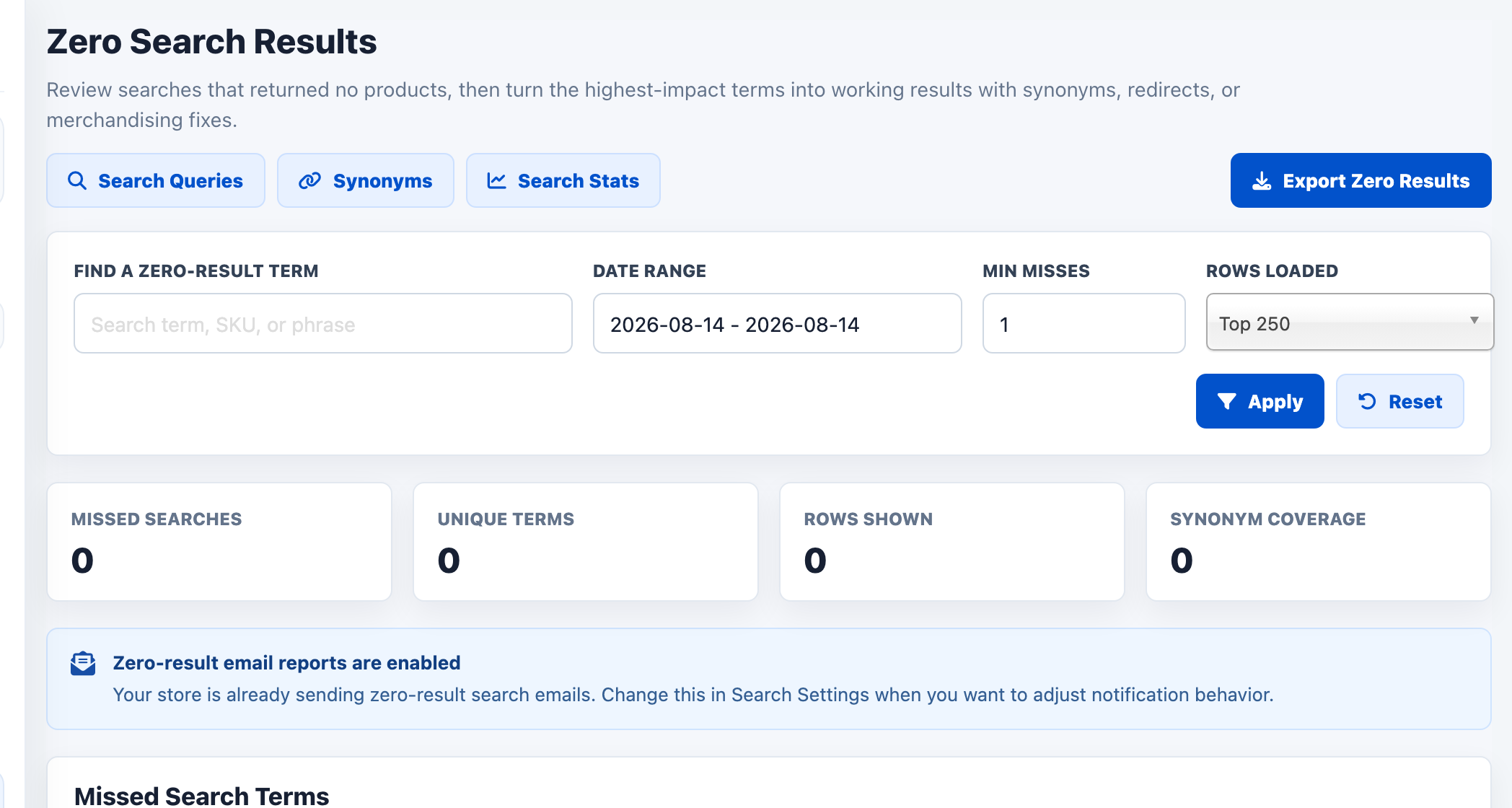
The Zero Search Results page lists searches that returned nothing. Each one is either a product you do not stock, or one you do stock under a different name. The second kind is fixed with a synonym or a search keyword, and is usually a direct sale recovered.
To send a term somewhere instead, find it on the report and set its destination there, without moving to another page. A shopper who types that term next lands on the page you picked. These redirects sit alongside the ones on the Redirects page.
Search tuning
Synonyms
Storefront The search term starts returning results for the words you mapped to it.
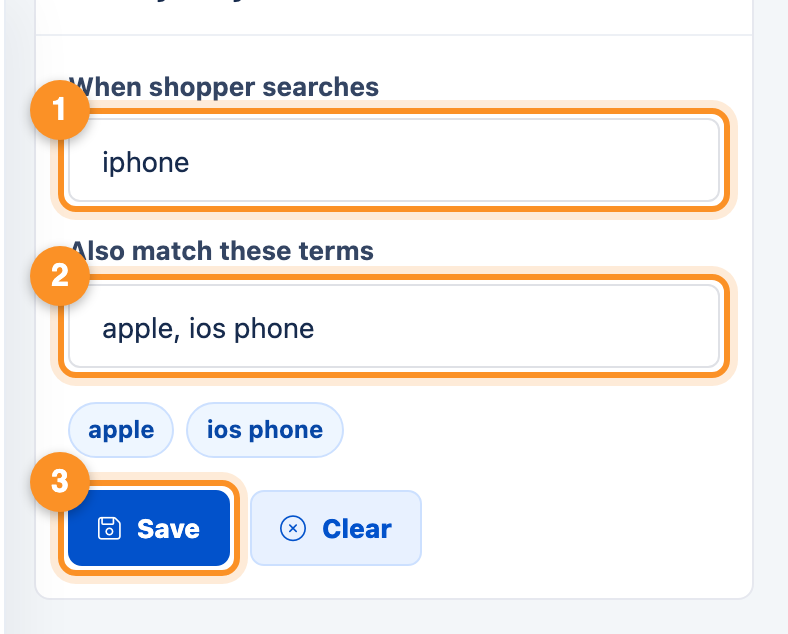
Synonyms let one search term return results for another: the customer's word for your word. Open Synonyms from the Search menu.
- When shopper searches: enter the term customers type, for example iphone.
- Also match these terms: enter the words it should also return, for example apple, ios phone. Each becomes a separate term chip below the field.
- Save. Searching iphone now returns Apple products too. Clear empties the form without saving.
Saved rules are listed under Synonym rules with their search term, the terms they also match, and a term count. For a large set, CSV tools exports and imports the whole list; the columns are Search Term and Synonym. Delete all clears every rule in one action, the quickest way to start again when a rule set has grown beyond what is worth untangling.
To make multi-word synonyms match the whole phrase rather than any one of its words, switch on Match Multi-Word Synonyms as Phrases.
Search keywords
Storefront The product becomes findable by terms that appear nowhere in its data.
Search keywords attach extra terms to a specific product so it can be found by words that appear nowhere in its data.
- Select the product under Add keywords to a product.
- Enter your terms in Words, comma separated and without spaces, for example Running,Trainers,Fast.
- Save keywords. Click the pencil on a saved row to edit it.
Categories can carry search keywords too, on the Manage Categories page.
Redirects
Storefront A matching search sends the customer straight to your chosen page instead of a results list.
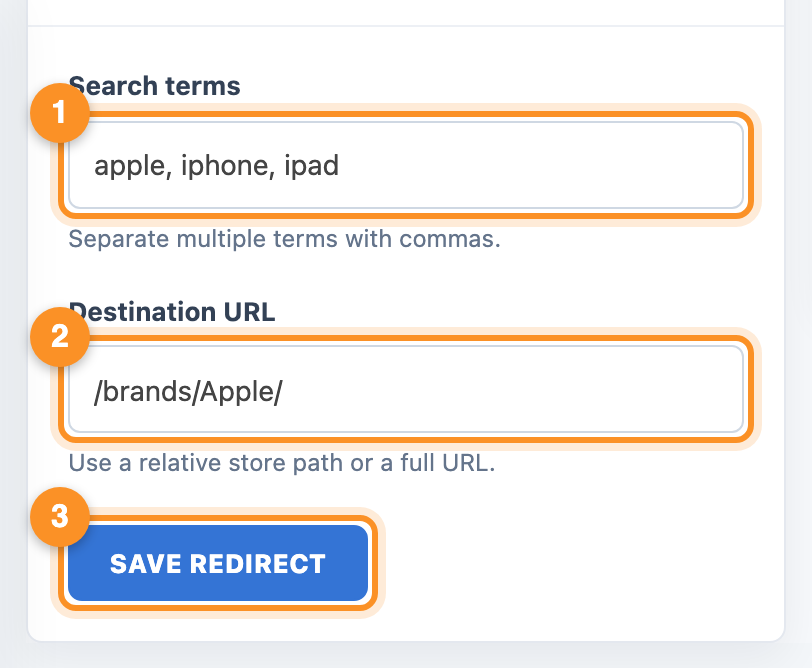
Redirects send a customer straight to a page when they search a particular term — a brand page for a brand name, a landing page for a campaign term.
- Search terms: the terms that should trigger the redirect, separated by commas, for example apple, iphone, ipad.
- Destination URL: where to send them, for example /brands/Apple/. A relative store path or a full URL both work.
- Save Redirect. The rule appears under Saved Redirects, where it can be edited or removed.
Suggestions Redirect
Storefront A custom suggestion appears in the search dropdown for its term, and can take the customer to your chosen page instead of to search results.
Open Suggestions Redirect from the Search menu and choose Add a suggestion. Enter the Search term, the Suggestion to show, and optionally a Redirect URL. Leave the URL blank to show the suggestion without redirecting. Click Save suggestion; click the pencil on a row to edit it.
Redirects apply to a submitted search. A suggestion redirect applies one step earlier, to what is offered as the customer types.
Search Query Control
Storefront The products you pick stop appearing for that search term, and nowhere else.
Query control hides specific products for specific search terms: the exception list for queries that need to behave differently from your general search settings. Use it when one query misbehaves and you do not want to loosen precision across the whole store to fix it. Click Add a search term, enter the term, tick the Products to hide, and save.
Ignore words
Storefront The word stops affecting results, which sharpens matching on everything else in the query.
Words the search engine should skip. Filler words and terms that appear across your whole catalogue produce noisy results; ignoring them sharpens everything else.
Open Ignore Words, type the term into the Word field and click Save word. Everything you have added is listed under Ignored words; click the pencil on a row to edit it.
Search priority
Storefront The products you promote move to the top of results for the terms you chose.
Search Priority pins specific products to the top of the results for specific terms, so your best-selling or best-margin item leads a query rather than whatever the relevance score happens to favour. Click Add a search term, enter the term, pick the Products to pin, and save. It works with the advanced search and the search results page, not the older quick search. To lift whole categories rather than single products, use Priority Categories In Search.
Merchandising rules
Storefront Result ordering changes across both search and filter results wherever a rule's conditions are met.
Merchandising Rules is an add-on. Rules control result ordering by condition rather than one product at a time. Rules can boost, bury, pin, hide or promote products for the search terms and categories that matter, and can pin or hide pages and blog posts. They apply across search and filter results, so the same rules govern both.
- Name
- A label for the rule.
- Applies to
- Products, Pages or Blog posts.
- Rule type
- What the rule does, for example boost, pin or hide.
- Target
- What the rule is aimed at, such as a search term, with a Target value.
- Condition
- When the rule applies, with a Condition value.
- Boost amount
- For a boost rule, how far products are lifted.
- Pin position and Pinned product IDs
- For a pin rule, which products go where.
- Starts and Ends
- The dates the rule is live, so a seasonal range can switch itself on and off.
- Enabled
- Switches the rule on or off without deleting it.
Use Preview with a search term or category ID, then Preview Rules, to see what your rules do before shoppers do.
Exclude products
Storefront The products vanish from search results. They stay on your store and remain reachable by link and category.
Products ticked here never appear in search results. They remain on your store and stay reachable by direct link and by category; this only removes them from search. Tick the Hide column and click Save. Saving clears the search cache, so the change is live on the next search.
Exclude category products
Storefront Those categories' products stop appearing in search results. Nothing is removed from your store.
The same, by category. Tick the Hide column against categories whose products should be kept out of search results, and click Save. Nothing is removed from your store.
Manage categories
Storefront Hidden categories drop out of search results; keywords make a category findable by more terms.
Manage Categories does two jobs. Tick the Hide column to keep a category out of search results, and use the Search Keywords column to add terms that should surface a category.
AI Search
Choosing AI Search
Storefront Changes how search matches and ranks products once AI Search is selected as the search engine.
AI Search is an add-on. It understands the meaning of a query rather than matching words only, so it still finds products when the shopper uses different wording from your catalogue. Open AI Search from the add-ons in the sidebar and set Search Engine to AI Search. Switching engines queues a full product sync so the new index can be built.
Ranking controls
Storefront Changes the order AI Search returns products in. Changes apply to new searches straight away, with no reindex.
You control the ranking rather than a single overall quality setting. Pick a Ranking Profile as your starting point, chosen for the kind of catalogue you sell, then tune what counts towards a result: meaning, brand, category and description each have their own weight. Leave a field blank to use the default shown inside it. Applying a profile only changes ranking, never your index.
- Minimum Score
- Products scoring below this are dropped from AI search results. The default is 1.35. Raise it if loosely related products appear; lower it if valid searches return too little.
- Typo Tolerance
- How many letters a word can be off by and still match: Automatic (default), Off, exact spelling only, Allow 1 letter difference or Allow 2 letter differences. Turn it off if part numbers one letter apart are being confused.
- Result Depth
- How many products AI Search returns per search before your visibility and stock rules apply. The default is 100.
- Reset Ranking To Defaults
- Clears every ranking control, including typo tolerance and result depth, back to the defaults. Priority categories and indexed content are not touched.
- Priority Categories In Search
- Name the categories whose products should rank above other matches for the same search. Useful when accessories that mention a product outrank the product itself. The products in the categories beneath them move up as well, and only products that already match can move.
- Priority Strength
- How strongly to favour those categories. 0 turns the boost off, 40 is the default and 200 is the maximum.
- Test
- Under Test A Search, runs a search exactly as your shoppers get it and shows the top 10 with what made each one rank.
Indexed content
Storefront Changes what search matches against. The index is shared by every channel, and a change queues a full product sync; new results appear once it finishes.
- Match On Brand Name
- Turn on if your product titles do not contain the brand. Without it, a search for a brand mostly matches the accessories that spell it out.
- Search Descriptions
- Includes product descriptions. Finds more products, but a product can then rank just for mentioning a term.
- Search Custom Fields
- Includes custom field values, for example calibre, material or fitment.
- Search Product Options
- Includes option values such as size and colour, so blue medium can find the product that comes in blue.
- Search Synonyms
- One rule per line. Commas treat words as the same word;
=>makes a one-way rule, so mag => magazine finds magazine for mag but not the reverse.
Learn from shopper clicks
Storefront With Learn From Shopper Clicks on, products shoppers repeatedly click for a search move up for that search.
Every night the app reads your own search history for words shoppers use that your catalogue does not, searches that return nothing, and searches where everyone clicks the same product. Suggestions appear under What Your Store Has Learned. Nothing changes your results until you accept it, and you can Dismiss any of them.
- Learn From Shopper Clicks
- Moves products shoppers repeatedly click for a search up for that search. It only reorders products that already match and needs a good number of clicks on a search before it does anything. Leave it off if you would rather approve every change yourself.
- Click Learning Strength
- How strongly those clicks move products.
AI shopping assistant
What it does
Storefront Adds a conversational assistant launcher to your storefront.
The AI shopping assistant adds a conversational search layer to your store. Customers describe what they need in their own words and it recommends products from your catalogue, rather than making them work out which facets to click. It is an add-on, found under Settings.
- Enable AI Shopping Assistant
- Turns on the chat, the storefront launcher and the recommendation cards for this store.
- Launcher Label
- The text on the button that opens the assistant. Say what it does: Help me choose beats AI.
- Show Filter Button
- Adds the AI button above the filter container, using the same label, so customers can open the chat from the filter.
- Store Keyword Map
- Maps the words your customers use onto your categories, one mapping per line, as Store Category: synonym 1, synonym 2.
- Greeting
- The opening message when a shopper first opens the assistant.
- Suggested Prompts
- One prompt per line, shown as quick chips above the input field.
- Rich Link Count
- The most product cards shown in each reply.
- Timeout (ms)
- The longest the assistant waits before it falls back to retrieval-only results.
- Ranking Fields
- Drag the active tags into priority order. The assistant uses this order to weight scoring and to decide which refinement question to ask first.
Conversations
Storefront Nothing. It is a log of what customers asked.
Every conversation is logged so you can read what customers asked for and what the assistant showed them. It is the clearest picture you will get of demand in your customers' own language — and a direct source of synonyms and keyword map entries.
Getting help
Support PIN
Your App Pin is shown in the App Status panel on the dashboard. Include it on every ticket so we can open your exact configuration. The Support link in the sidebar fills in your store for you.
Change log
The Changelog, under Help, lists what has shipped. Check it before reporting a problem — the fix may already be live.
Contact us
Raise a ticket from the Support link under Help in the app, or email support@freshclick.co.uk. Include your store hash, your support PIN, and a URL showing the problem.